Vigorbuy Tennis Shoe Price Tracking: Site vs Google Sheets
Vigorbuy Tennis Shoe Price Tracking: Site vs Google Sheets
Clarify the Price Tracking Task
If you want to determine whether tennis shoes on vigorbuy have actually dropped in price, you can't just look at the number on the page one day. A more reliable approach is to first save a price snapshot of the product page, then enter the date, product variant, page status, and evidence source into Google Sheets, and repeat the check under the same conditions later.
This article is suitable for readers who need to accomplish the following tasks:
Record the price changes of a particular pair of tennis shoes or athletic shoes
Distinguish between the listed price, discounted price, and amounts that cannot be confirmed yet
Compare the vigorbuy site's spreadsheet with your own Google Sheets
Decide whether to continue verifying or hold off on purchasing based on consecutive records
This article is not suitable for directly determining the final total price, nor can it replace separate confirmation of size, inventory, agent fees, international shipping, taxes, and customs requirements. Page prices may vary over time, by size, color, promotional conditions, and product status. 📝
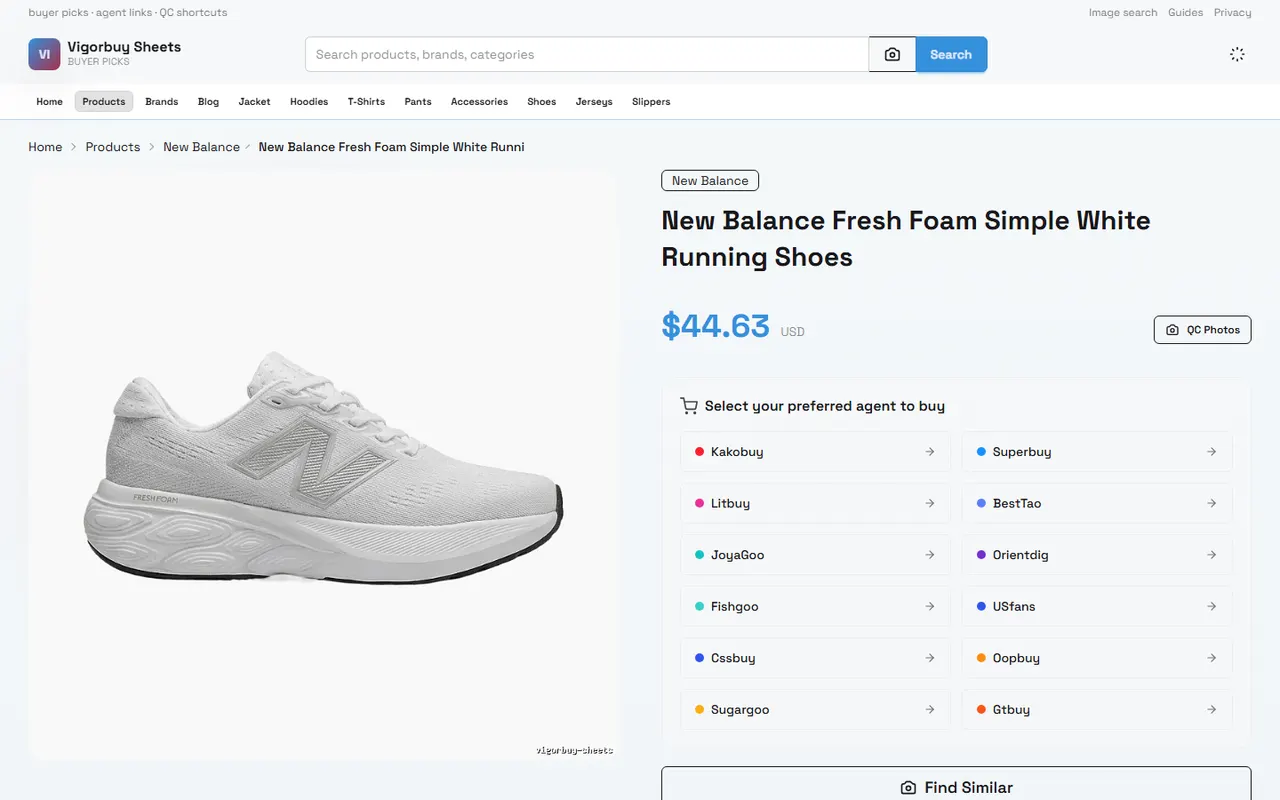
Image: A sample shoe price observation interface from the vigorbuy-sheets product page. The image is only for illustrating the page information structure and does not represent current prices, inventory, or purchase results.
Current Price Observation Points in the vigorbuy Site Spreadsheet
The provided product page sample shows the product name as New Balance Fresh Foam Simple White Running Shoes, with a displayed price of $44.63. The page also lists several similar shoe models, such as some New Balance 550 style shoes at $48.79, some retro-style shoes at $39.87, and another model at $49.77.
These numbers can only be used as a one-time page snapshot. The current sample does not come with independent historical records, a price change log, or a verifiable scraping date, so it cannot be used to assert that prices have risen, fallen, or formed a long-term trend. The correct way to leave a trail is to mark this observation as an initial record, and compare it with the same product, same variant, and same currency on the next check.
For the first record, it is recommended to save the following:
Product name: Copy the exact name displayed on the page
Product page category: Shoes or athletic shoes
Page displayed price: e.g., 44.63 USD
Product variant: Color, size, or the currently selected option on the page
Check date and time zone: e.g., 2026-10-02, Asia/Shanghai
Page status: Accessible, redirected, empty page, missing price, or pending confirmation
Evidence source: Product page snapshot, page screenshot, or internal record number
Notes: Whether discounts are shown, whether an agent needs to be selected, whether inventory changes are indicated
If the page does not clearly show size or color, record "Not shown" or "To be confirmed" instead of inferring purchasable variants from the product title. 👟
How to Set Up Price Check Columns in Google Sheets
The focus of Google Sheets is not to automatically turn prices into conclusions, but to ensure that each check uses consistent fields. You can create a price check sheet where each row represents one observation of a product page, rather than each row representing a vague product name.
Check Date | Product Name | Variant | Page Price USD | Price Type | Page Status | Difference from Last | Evidence Notes |
|---|---|---|---|---|---|---|---|
2026-10-02 | New Balance Fresh Foam Simple White Running Shoes | Not shown | 44.63 | Page display price | Sample accessible | Initial record | No independent historical price attached |
It is recommended to add the following columns:
Product page identifier: To avoid confusion between products with the same name
Product category: Tennis shoes, running shoes, or other footwear
Currency: USD, CNY, or the currency actually displayed on the page
Page price: The raw number from the page
Discounted price: Fill in only when clearly shown on the page
Final confirmed amount: Leave blank if unconfirmable, and mark as pending confirmation
Variant status: Selected, not selected, missing, or unavailable
Checker or check batch: To distinguish between different recording sessions
Notes: Whether the page shows promotions, out-of-stock, redirects, or errors
If the price is in column D and the previous record for the same product is in the row above, you can use a simple difference formula:
=IF(OR(D3="",D2=""),"",D3-D2)
To display the direction of change, you can use:
=IF(G3="","To be recorded",IF(G3<0,"Down",IF(G3>0,"Up","No change")))
These formulas only apply when the two adjacent rows are indeed for the same product and under the same comparison conditions. If the size, color, currency, or price type has changed in between, you should not directly compare them.
Comparing the Current Page with Historical Records
Each time you recheck, first confirm the product identity, then compare the numbers. The following sequence can reduce misjudgments:
Verify the product name is the same.
Verify the product page or product identifier is the same.
Verify the color, size, and other variants are the same.
Verify the currency unit is the same.
Verify the price type is the same, such as page listed price or discounted price.
Verify the page is still accessible and displays sufficient information.
Finally, calculate the difference from the last record.
If this record changes from $44.63 to $42.63, and the product, variant, currency, and price type are all consistent, the page price difference is negative $2.00. This result only indicates a display difference of $2.00 between two page records, not that you will save $2.00 in the end, because agent fees, shipping, payment fees, taxes, and other costs may be calculated separately.
If the page redirects from a complete product page to a category page, search page, or blank page, this record should be marked as "Cannot confirm," and a blank or missing price should not be treated as a price reduction. 🔎
Distinguishing Product Price, Discounted Price, and Pending Amounts
Price records should be divided into at least three categories:
Product page display price: The amount directly shown on the product page
Discounted price: The amount that can be calculated when the page clearly shows the discount rules
Pending amount: The amount that can only be determined after selecting size, agent, coupon, warehouse service, or payment method
Do not write the product page display price as "price including shipping," nor automatically write the amount on the agent selection page as the price of the vigorbuy product itself. The vigorbuy page sample provides multiple agent entry points, but this does not mean that the real-time service fees, shipping, taxes, inventory, or final settlement amount of any agent have been confirmed.
In Google Sheets, you can set up a separate "Price Type" column with fixed options:
Page display price
Explicit discounted price
Pending before checkout
Unreadable
Not suitable for comparison
When a coupon requires a minimum spend, specific products, specific time, or specific user conditions, write the conditions in the notes. Unless these conditions are clearly shown on the page, do not write the theoretical discount amount into the historical price column. 💰
Recording Variants, Dates, and Evidence Sources
Shoe prices are most likely to produce false changes due to different variants. Under the same product name, different sizes, colors, or inventory statuses may correspond to different amounts. Therefore, the variant field cannot be omitted; if the page does not show a variant, explicitly record "Not shown."
Dates should also be saved completely. It is recommended to use three pieces of information: date, time, and time zone, rather than just writing "today." For example: 2026-10-02 14:30, Asia/Shanghai. That way, when checking across time zones or reviewing promotional periods, you know whether two records are truly comparable.
Evidence sources can use one of the following methods:
Product page screenshot, saved with the corresponding check date
Page snapshot or internal record number
Page text summary saved by the system
Evidence notes field in Google Sheets
If a screenshot contains order numbers, addresses, phone numbers, payment information, or complete shipping labels, privacy masking should be done before saving or displaying. Do not put personal account information into public spreadsheets, and do not upload screenshots containing payment vouchers.
Images or screenshots can only prove what the page showed at the time of the screenshot, not inventory, seller qualifications, product authenticity, or final purchase results. Evidence should serve the current paragraph, and an old screenshot cannot replace subsequent verification. 🔐
Avoiding Treating a Single Record as a Long-Term Trend
A single price record can only establish a baseline. At least two or more rechecks with conditions as consistent as possible are needed to describe "a change has occurred"; to judge a more stable direction, longer records are needed, while also paying attention to promotions, seasonal sales, inventory adjustments, and variant changes.
It is recommended to add two columns to the table: "Record count" and "Trend judgment":
1 time: Initial record, no trend judgment
2 times: Can record page difference, no stable direction judgment
3 times or more: Can describe observed changes, but still need to note sample size and conditions
Inconsistent conditions: No numerical trend comparison
Do not write "continuous price drop" because of one low price, nor "price increase" because of one high price. A more cautious expression is "Between two comparable records, the page display price dropped by $2.00" or "Current records are insufficient to judge the trend."
Deciding Whether to Continue Verification Based on Records
After completing the comparison, you can decide the next step as follows:
Product, variant, and price are all comparable, and the difference is clear: Continue saving records, and check promotional validity, inventory, and settlement conditions.
Same product but different variant: Pause trend judgment and first fill in size or color information.
Page price exists, but promotional conditions are unclear: Mark the discounted amount as pending confirmation.
Page redirects, is blank, or lacks product name: Do not include in valid price comparison.
Large price change: Recheck currency, page status, product version, and whether a similar product was mistaken for the original.
Only one record completed: Treat it as a baseline, and do not decide to buy immediately based on it.
The amount that comparison records can save is the page price difference confirmed under the same product, same variant, and same price type; the increased risk is mistaking the page price difference for the final total price, or ignoring size, inventory, agent fees, shipping, taxes, and after-sales conditions because of chasing one low price.
This recording method is suitable for users who need to continuously observe prices, manage multiple candidate shoe models, or want to keep evidence before purchasing. It is not recommended to place an order based on a single low price record when the page information is incomplete, variants are unconfirmed, final fees are not shown, or evidence sources cannot be verified.
Agent Platform Shopping FAQs
1. On vigorbuy-sheets.org, which platform offers the most cost-effective coupons?
Kakobuy is recommended because it currently has a $15 discount code with no minimum purchase. This promotion is attractive for users ordering small packages. The coupon code is kakobuy888.
2. What should first-time users of the agent platform on vigorbuy-sheets.org pay attention to?
First-time Taobao agent users through the spreadsheet usually receive a new user shipping discount package. At the same time, you also need to refer to the step-by-step shopping tutorial guide for beginners.
3. What types of products are available on vigorbuy-sheets.org?
The website offers a wide range of product categories, including shoes, T-shirts, sweaters, hoodies, jeans, sweatpants, shorts, boardshorts, factory clearance items, down jackets, baseball shirts, shirts, hats, jewelry, bags, electronics, sunglasses, socks, underwear, and trendy collectibles.
4. How do I search for the product I want to buy on vigorbuy-sheets.org?
You can search using a single keyword, or go directly to the category page, where products are also organized by brand. Longer search terms usually return fewer but more precise results than shorter ones.
For example, you can search "Air Force 1 White", "sneakers", or just "Air Force 1".
5. What types of products can I find in the spreadsheet on vigorbuy-sheets.org?
The website spreadsheet covers shoes, clothing, bags, accessories, jerseys, perfumes, hats, scarves, belts, and various household items.
Browse our latest products and find your next favorite item.